
Setup Guide
This guide covers the verified first-run path for the SindByte local MCP runtime: start SindByte 01.exe, confirm http://127.0.0.1:5555/mcp, connect the host, then shape the published catalog through configuration.

What is SindByte?
SindByte is a bridge between AI assistants (like those running in LM Studio) and your Windows computer. Normally, AI can only chat with you. With SindByte, it can:
- Read and organize your files
- Take screenshots and control windows
- Search the web and analyze data
- Run scheduled tasks automatically
- Use advanced reasoning strategies
- Trade on crypto exchanges
- Generate and edit images
- Access your clipboard and memory
Quick Setup in 3 Steps
1Download and Extract
Download the ZIP file from our website and extract it to any folder on your computer (like your Desktop or Documents folder).
Tip: SindByte is portable - it doesn't need to be "installed" like traditional software. Just unzip and run.
2Launch SindByte
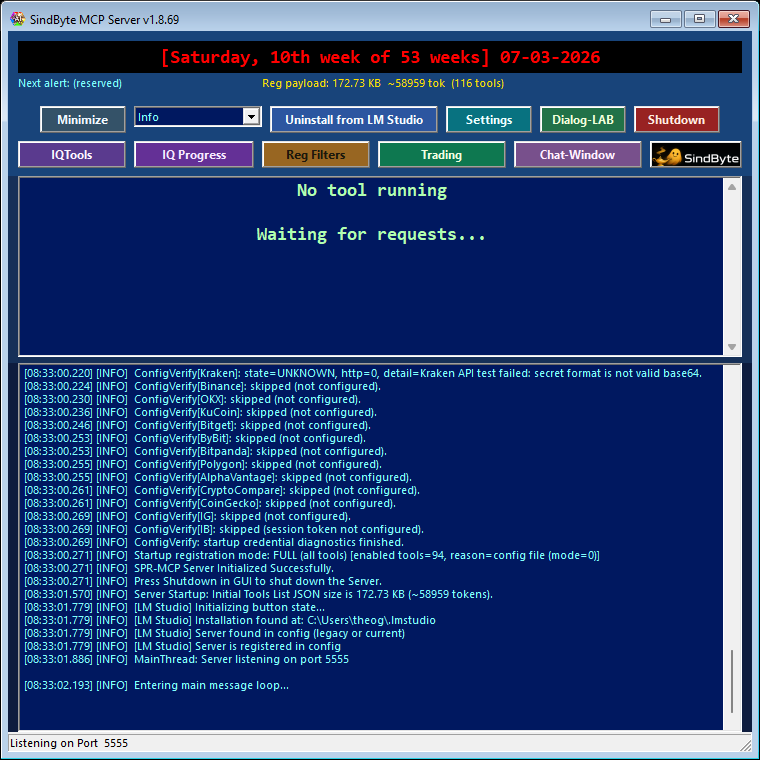
Double-click the SindByte 01.exe file. You'll see a window like the screenshot above with status information.
Make sure you see Listening on port 5555 in the status area. This means the server is running and ready.
3Connect Your AI
Open your AI client (LM Studio, Roo Code, or similar) and add SindByte as an MCP server.
See the section below for specific instructions for different clients.
Ground Truth for First Run
Runtime Facts
- Executable:
SindByte 01.exe - Endpoint:
http://127.0.0.1:5555/mcp - Transport:
streamable-http/ MCP JSON-RPC - Default posture: localhost only
Why Tool Counts Vary
- Registration mode can be Full or Short.
- Category filters can narrow the published surface.
- Credential-backed families stay effectively gated until configured.
- Many hosts cache schemas and need reload after config changes.
Connect Your AI Client
Different AI clients connect to SindByte in slightly different ways. Here are the most popular ones:
LM Studio
In LM Studio, go to Settings -> MCP Servers and add:
{
  "sindbyte": {
    "url": "http://127.0.0.1:5555/mcp"
  }
}
Then reload the server list to see SindByte's tools.
Roo Code (VS Code)
In VS Code settings, add to your MCP configuration:
{
  "mcpServers": {
    "sindbyte": {
      "type": "streamable-http",
      "url": "http://127.0.0.1:5555/mcp"
    }
  }
}
Reload the window after adding the configuration.
Your First Commands
Once connected, try these natural language commands in your AI chat:
File Operations
- "Show me files in my Downloads folder from this week"
- "Organize my Desktop by file type"
- "Find all PDFs and list them by size"
- "Create a backup of my Documents folder"
Desktop Control
- "Take a screenshot and describe what you see"
- "Show me all open Chrome windows"
- "Resize the Notepad window to 800x600"
- "Click the OK button in the dialog box"
Smart Reasoning
- "Analyze this problem step by step" (uses Chain-of-Thought)
- "Give me 3 different approaches to solve this"
- "Critique your own answer and improve it"
- "Explain this like I'm 5 years old"
Web & Data
- "Fetch the latest news from BBC and summarize"
- "Convert this CSV to JSON format"
- "Search for Python tutorials and give me the top 3"
- "Extract phone numbers from this text"
Configuration (Optional)
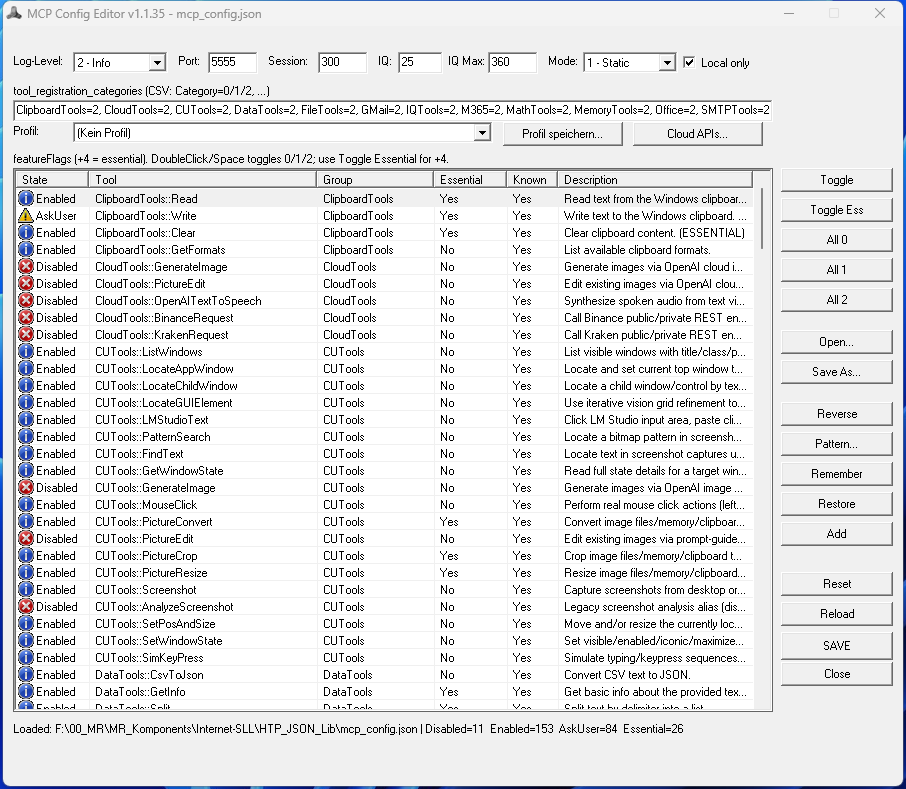
SindByte works immediately with basic tools. For advanced features like trading, email, or image generation, you'll need to configure API keys.
What You Can Configure
Enable/disable individual tools or entire categories.
Add keys for OpenAI, trading exchanges, email, etc.
Choose how tools appear to your AI (full list vs. categories).
Set which tools need confirmation before running.
Advanced Features
Once you're comfortable with the basics, explore these powerful features:
Dialog-LAB
Compare 2-3 AI models side-by-side. See which one gives better answers.
LMChat
Use the lighter one-model chat surface with IQ helpers, attachments, transcription, and faster follow-up execution.
Trading Hub
Connect to 12 crypto exchanges. Paper trade risk-free with AI analysis.
Timer + IQ
Schedule recurring AI tasks. Daily reports, market scans, etc.
Image Tools
Generate images with AI, resize, convert, and create web assets.
Troubleshooting
"My AI doesn't see SindByte tools"
- Make sure SindByte is running (check the window shows "Listening on port 5555")
- Verify the URL in your AI client is exactly
http://127.0.0.1:5555/mcp - Reload/restart your AI client after any changes
- Check that the tool categories you want are enabled in Config Editor
"I see fewer tools than expected"
- Some tools require API keys (trading, email, images). Add them in Config Editor.
- Check Registration Filters - some categories might be set to "OFF"
- Try switching between "Short" and "Full" registration mode
"The server won't start"
- Check if another program is using port 5555
- Try running as Administrator if you get permission errors
- Make sure your antivirus isn't blocking the executable

Four layers from AI host to real Windows actions - a local endpoint controls the entire flow.

Audited local MCP system with desktop automation, Dialog-LAB, LMChat, Trading Hub and Timer + IQ workflows. The current config audit shows 237 feature flag entries in 19 MCP families; The two core/runtime routes result in a host-accessible interface of 239 tools. Which tools a client actually sees depends on the build profile, credentials, registration filters and registration mode. The platform emerged from the Smart package robot-Development.
Contents
1) Setup 2) Connect client 3) Choose provider 4) Tool filters and security 5) Use IQTools/Timer 6) Image workflows 7) Product interface and forms 8) Troubleshooting 9) FAQsQuick start in 3 minutes
ToolCatalog.ListCategories start.Online user manual
This guide will show you the productive path from initial setup to automated IQ, trading and image workflows.

Instructional graphics created directly with SindByte
This guide now combines two types of evidence: live screenshots from the current Windows build and generated explainer graphics coming from the same server.
CUTools::GenerateImage generated and with CUTools::PictureResize adapted for the pages. So the instructions were updated with the running SindByte Runtime itself, not with an external design toolchain.Live interfaces in the current build
Direct detail pages for operator interfaces
1) Setup
SindByte 01.exe start.http://127.0.0.1:5555/mcp.Verified facts for the first start
Runtime Facts
- Executable:
SindByte 01.exe - End point:
http://127.0.0.1:5555/mcp - Transport:
streamable-http/ MCP JSON RPC - Default: localhost only
Why the number of tools fluctuates
- Registration mode can be Full or Short.
- Category filters narrow the published surface.
- Credential-linked families remain effectively locked out without credentials.
- Many hosts cache schemas and need to reload after config changes.
2) Connect client
You can connect SindByte with LM Studio, Roo Code, VS Code add-ons or other MCP clients.
- Client displays tool list -> connection is established.
- If schema changes, reload the client so that the cache disappears.
- Starting tool for orientation:
spr_server_assistant.
3) Choose provider
- LM Studio: local, ideal for private or offline workflows.
- OpenAI: Cloud power for IQ, voice and image workflows.
- In the IQTools/Timer dialog you select the provider using the combo box.
4) Tool filters and security
- Bit flags are used per tool:
0disabled,1activated,2ask first, optional+4essential. - The dialogue
Registration Filterssets per categoryON,ESSENTIALorOFFand rebuilds the published registration payload. - Short-Mode can publish compact, category-centric registrations instead of the complete tool list.
- Credential-bound routes like
M365andTeamsremain blocked until usable access data is available.
What the Config Editor controls
He edits the same mcp_config.jsonthat the server reads: feature flags, provider keys, OpenAI image sharing, image model, port, timeouts, log level and local-only behavior.
Why operators start here
The Config Editor forms the deployment-specific runtime catalog from the large product interface. What your client sees later is usually decided here first.
Cloud APIs Center
OpenAI, OpenRouter, Serper, Kraken, Binance, OKX, KuCoin, Bitget, IB, ByBit, Polygon, Bitpanda, AlphaVantage, CryptoCompare, CoinGecko, IG, Gmail, M365, Teams and other provider tests lie behind the same interface.
Profiles + batch actions
Profile, Enable All, Disable All, Ask All and Pattern Selection help you quickly change the published interface without manually editing JSON.

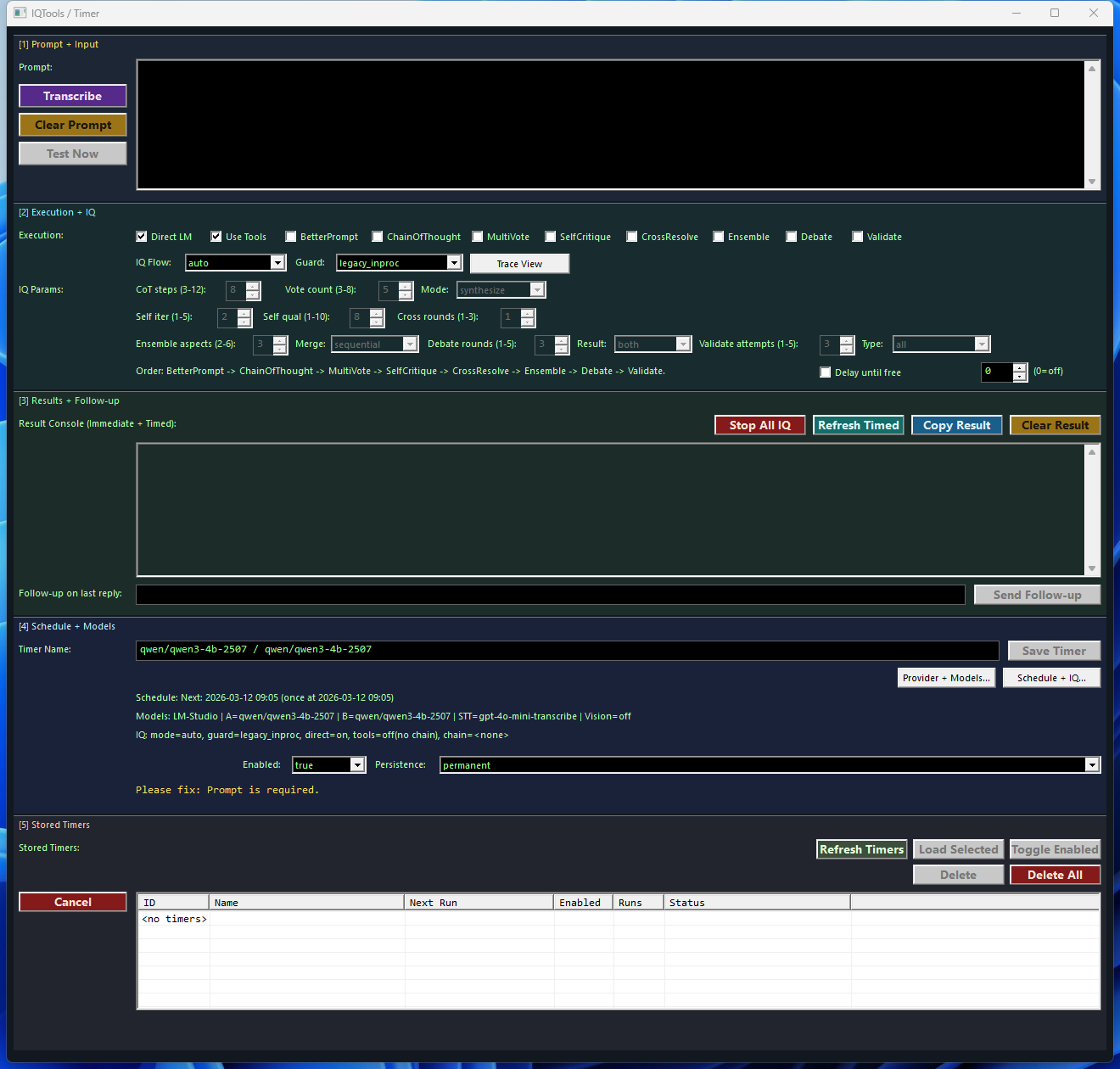
5) Use IQTools/Timer
- Enter promptly, select provider/model and mark IQ checks.
Immediate Test Promptchecks the flow immediately.- Save timer for
once,interval,dailyorweekly. - The Result Console shows direct results for manual follow-up prompts.
6) Enable image workflows
- Set OpenAI key in the config.
OpenAIImageToolEnabled=trueactivate.OpenAIImageModelchoose, for examplegpt-image-1.- Then stand
CUTools::GenerateImageandCUTools::PictureEditready for agents.
7) Product interface and forms
Code Audit Summary: The current config set defined 237 feature flag entries in 19 MCP families. The two core/runtime routes result in a host-accessible interface 239 tools. are standard 121 activated, 76 ask first, 14 are disabled and 22 are marked as essential. Which tools a client actually sees depends on the build profile, credentials, registration filters and registration mode.
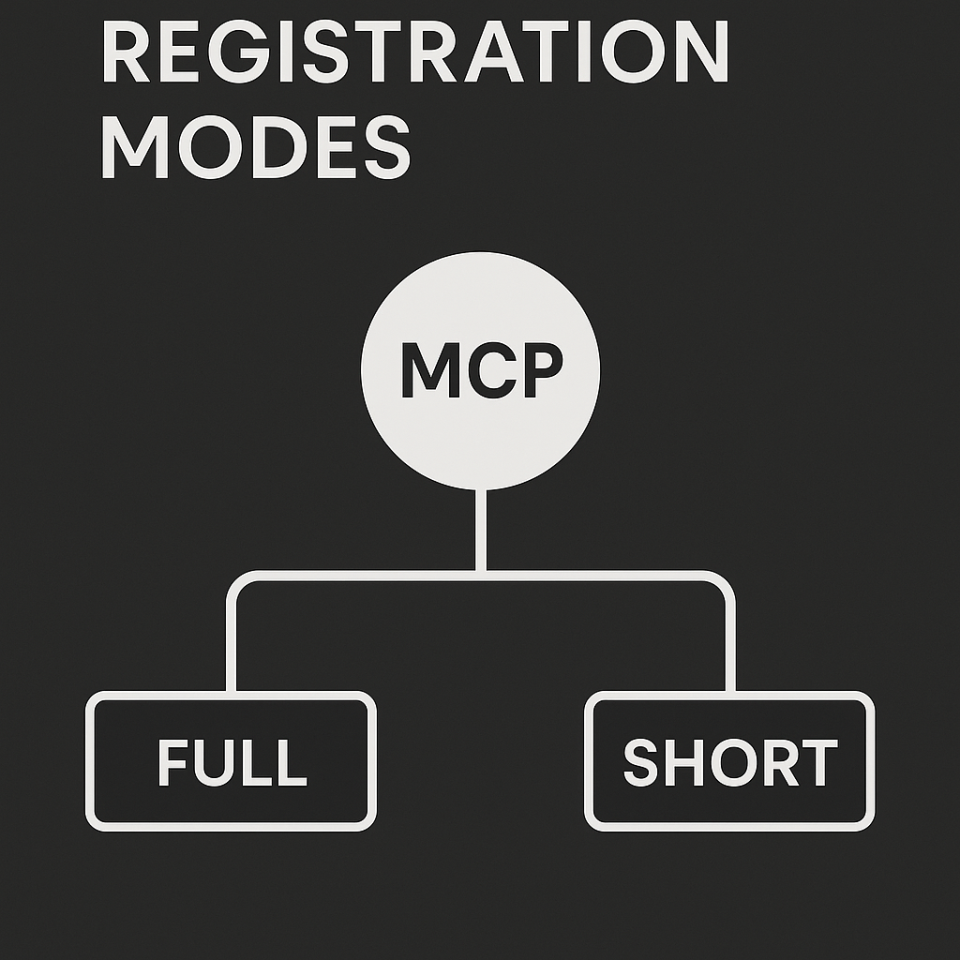
- Full/Long publishes the activated tool routes directly and is intended for clients who want to see as many direct tools as possible.
- Short works more compactly
ToolCatalog.ListCategories,ToolCatalog.ListTools,ToolCatalog.GetToolSchemaandToolCatalog.CallTool. - In short fashion delivers
include_schema=truethe full schemes. IQTools emphasizesBetterPromptandValidate; MemoryTools emphasizesRecallandStore. - Registration filters work per category
ON,ESSENTIALandOFF, so the same code can publish significantly differently on different machines.
TaskTools and UserTools are only present in SLL builds. TradingIQ and TradingAI run via the IQ dispatcher.M365 and Teams dispatch only with usable credentials. Start with for an overview spr_server_assistant and then open ToolCatalog.ListCategories or the dialogue Registration Filtersto see the currently published interface.
8) Troubleshooting
- Tool missing: check feature flag, registration and client reload.
- OpenAI error: Check API key, network and model name.
- Unstable behavior: Compare server log plus debug log and isolate the last request.
- Tests should run without MessageBox: turn off interactive messages in test builds.