
Workflow Guides
Practical patterns that respect the audited 237-entry config surface across 19 MCP families while acknowledging that the host-callable 239-tool runtime can still publish a smaller filtered catalog.
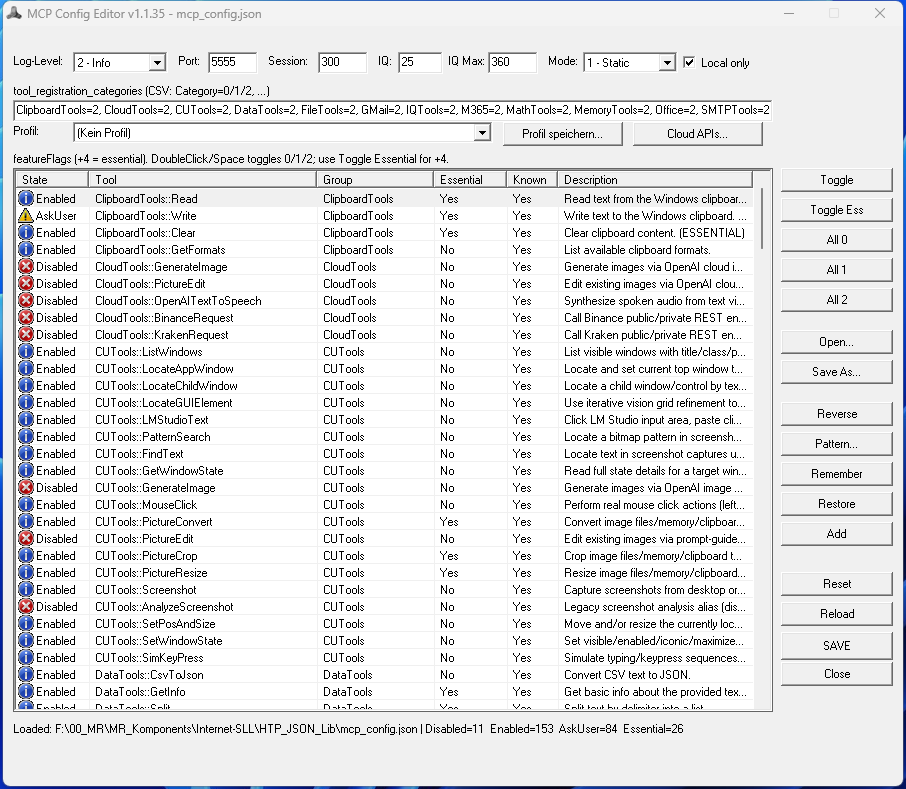
1. First-Day Setup and Catalog Check
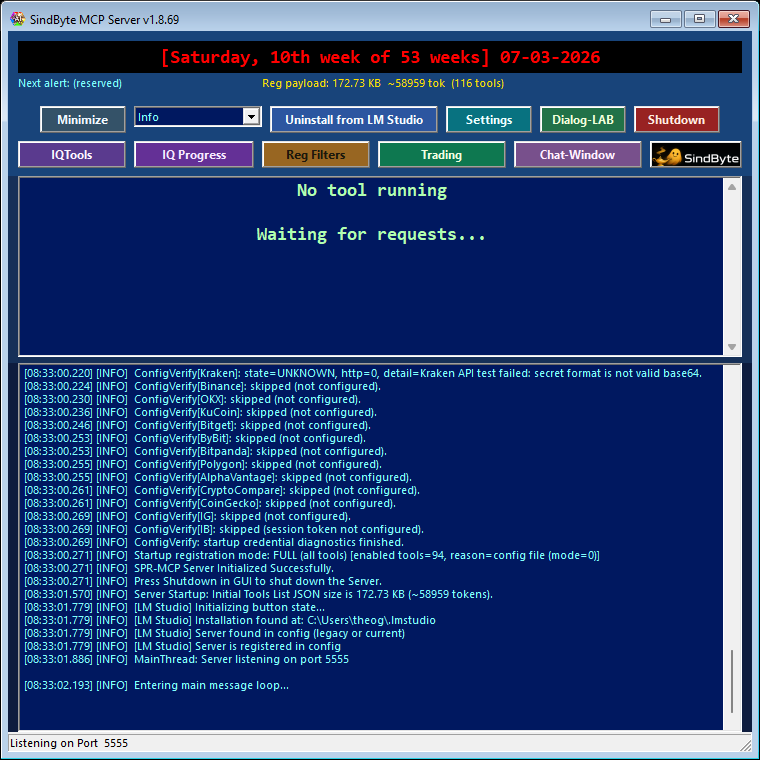
Before any serious automation, confirm what this machine can actually publish.
- Launch the server and verify that the local endpoint is available on
http://127.0.0.1:5555/mcp. - Open the configuration surface, add credentials only where needed, and keep destructive routes on
ask first. - Review the registration output because build profile, credentials, and registration mode decide what the client receives.
2. Local Coding Assistant Workflow
Use a narrow publication set and keep write operations gated.
- Expose only the families you need for the repo: usually FileTools, DataTools, TextTools, and selected IQ routes.
- Read and inspect first, then ask the model to propose a patch before any file write.
- Use reasoning helpers such as Validate or SelfCritique when the change crosses multiple files or affects deployment logic.
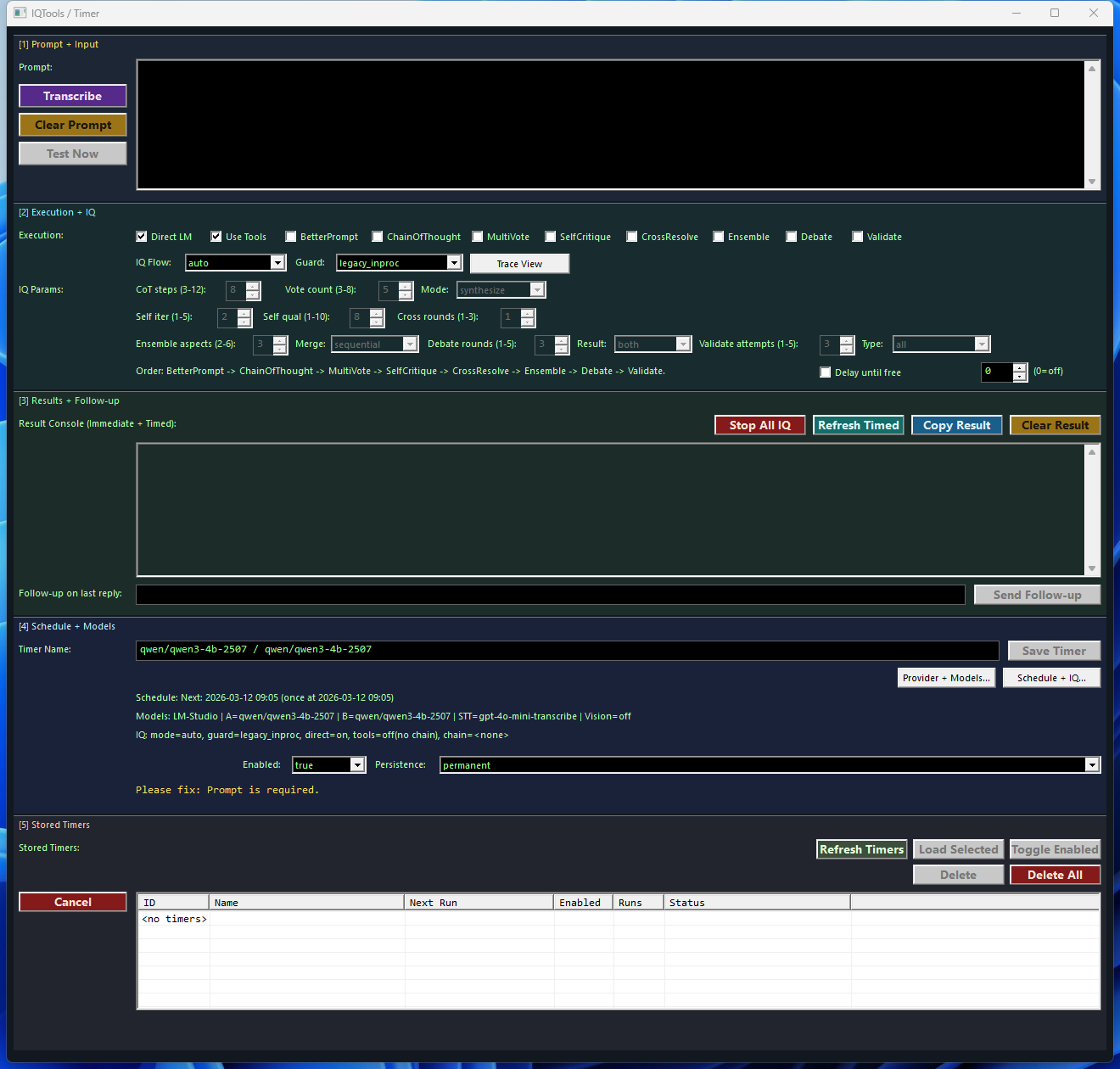
3. Scheduled Timer + IQ Workflow
Use the SetTimer surface when you want the reasoning engine to run on a schedule instead of by manual prompting.
- Select the provider and model deliberately for each timer; local LM workflows and cloud workflows have different cost and latency profiles.
- Store output into memory or a file target so the next workflow step has something durable to consume.
- Reserve this flow for repeated monitoring, report generation, or market scans.
4. Dialog-LAB Review Workflow
Use Dialog-LAB for comparison and LMChat for direct follow-up execution.
- Run the same prompt across model A/B/C inside Dialog-LAB.
- Inspect reasoning traces and choose the most useful answer or merge path.
- Move the winning prompt or result into LMChat when you want a simpler one-model continuation with IQ support.
5. Paper-First Trading Workflow
Treat the trading stack as an operator workflow, not a blind auto-trader.
- Verify credentials and keep permissions minimal.
- Use Scanner to shortlist candidates, then MultiVote or Consensus to challenge the setup.
- Run paper sessions first and store learnings before any move toward live execution.
6. Desktop and Web Asset Pipeline
Locate the target window before deterministic desktop interaction, or use the image stack when the deliverable is a web page or documentation set with local assets.
This works best when the provider routes are published and the target mode is chosen explicitly: file for committed assets, memory for intermediate review, clipboard for quick handoff, or both when you want permanence plus convenience.
Operational Safeguards
- Keep write, delete, registry, and execution routes on
ask firstunless the workflow is tightly bounded. - Use full registration mode when discovery matters and short mode when you want a tighter, category-centric footprint.
- Remember the audit baseline: 237 feature-flag entries across 19 MCP families in the config, or 239 host-callable tools once the two core/runtime routes are counted, but the live client catalog can legitimately be smaller.